Clear App Data and Cache on Fire TV
Clear app data and cache on your Fire TV to resolve intermittent app issues or fix any low storage messages that appear on-screen.
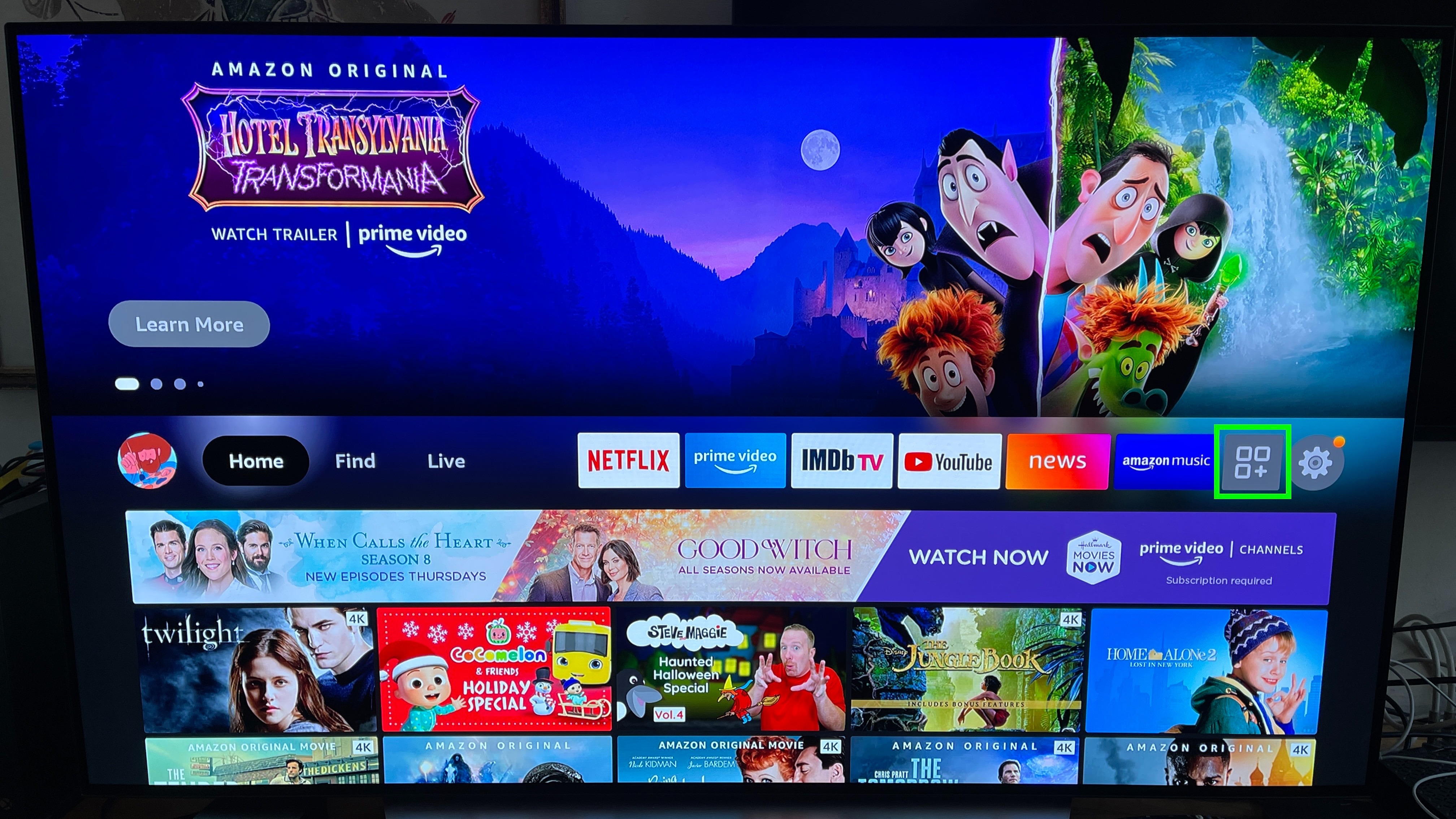
- Go to Settings
 from your Fire TV menu.
 - Select Applications
 .
. - Select Manage Installed Applications.
- To clear all application caches, select Clear all Application Caches, and then Confirm.
- To clear the cache and data for a specific app:
- Select the app.
- Select Clear Cache, and then Clear Data.
If you need to uninstall an app from your device, go to Uninstall Games and Apps on Your Fire TV.
Note: It is recommended to only run the Budvue app on your Fire Stick or Fire TV to optimize performance.
As a second step, check running apps using the app switcher
4
Hold the Home button on your Fire Stick remote.
Select Apps.
Scroll through the recent apps row.
This shows recently used apps, which are usually the ones still cached in memory.
Note: It doesn't show every background process.
Was this article helpful?
That’s Great!
Thank you for your feedback
Sorry! We couldn't be helpful
Thank you for your feedback
Feedback sent
We appreciate your effort and will try to fix the article