Task: Use product overrides to instantly fix incorrect information or force a new product to display on your menus.
Platform: Budvue Dashboard (Web Browser)
Use this article when:
- A product is visible in your Dashboard but is missing from your TV menu.
A product is displaying incorrect information (wrong name, brand, weight, or category) on your screen.
You have a new product that isn't showing up on your menu yet.
Do not use this article if:
The product is completely missing from both your TV and the Budvue Dashboard — see BuzzTV/DS1: Products Not Displaying Correctly
Why is my product missing or incorrect?
To keep your menus looking clean and professional, Budvue automatically cross-references your POS items with our product database
If a product is new, it may not be in our database yet. When the system doesn't recognize a product, it may hide it or display generic information. Applying an override bypasses the database and forces the screen to show exactly what you type.
Steps
Log into the Dashboard: Go to dashboard.budvue.com and log in.
Navigate to Products: Click on the Products tab in the main navigation menu.
Search for the Product: Use the search bar to find the specific product that needs to be fixed or forced onto the menu.
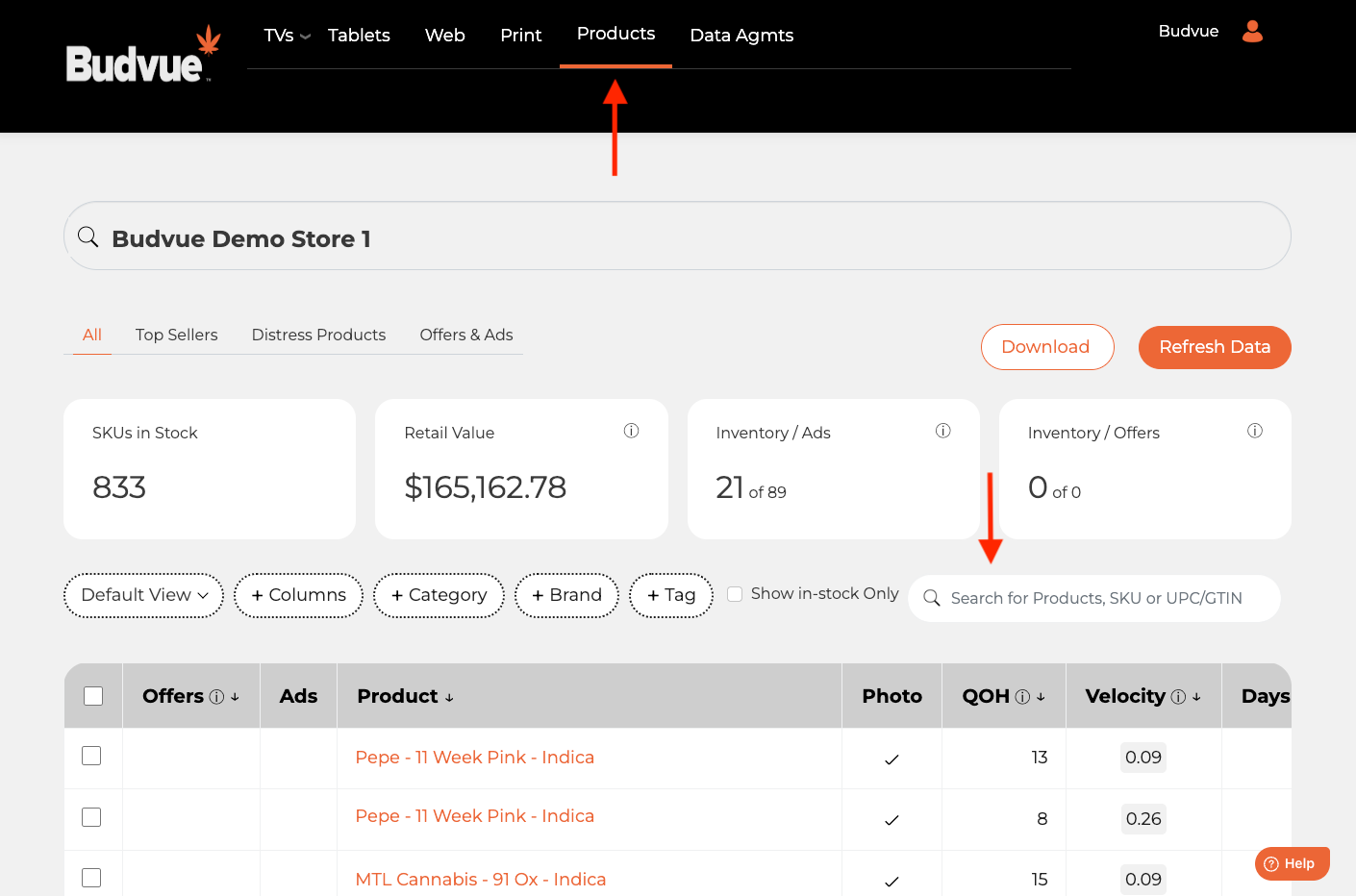 Open the Override Page: Click directly on the Product Name to open the override settings.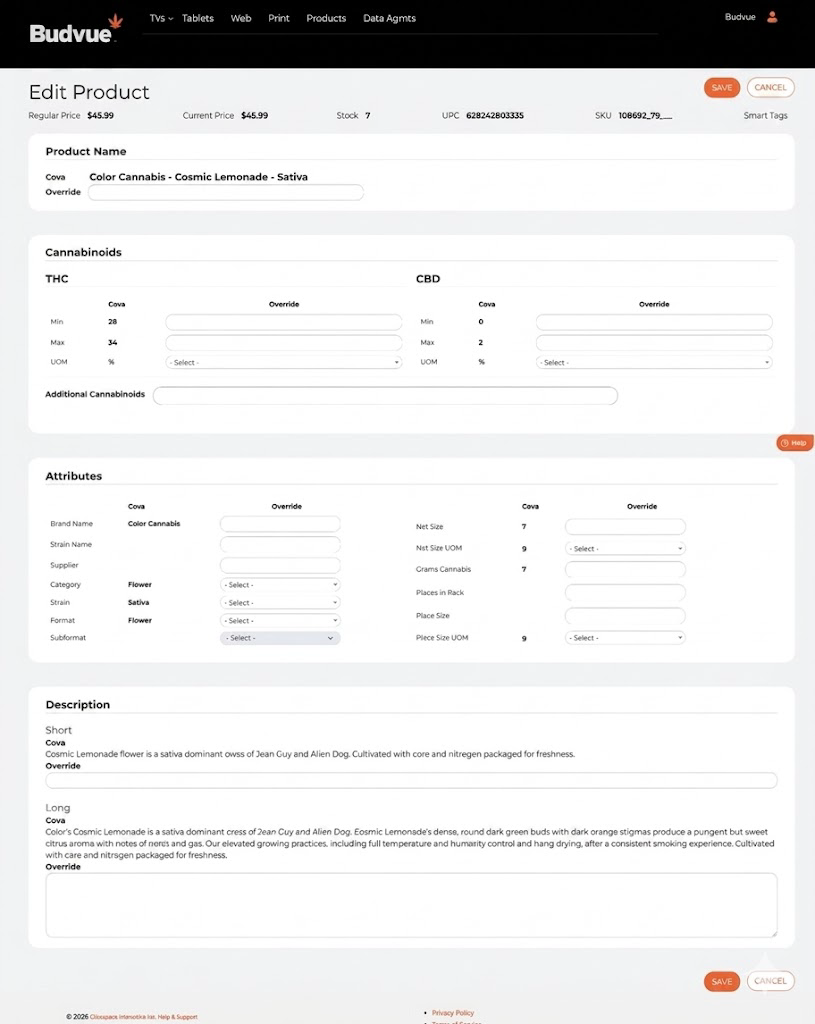
Fill in the Overrides: Fill in the specific fields you need to update or fix (e.g., Product Name, Brand, Size/Weight, Category, THC/CBD Values, or Strain Type).
Note: You only need to fill out the fields you want to change. If the product is missing from the menu, fill out the name, brand, and category.
Save Changes: Scroll down and click Save.
Expected result: The product updates instantly in the Dashboard and will populate on your TV menus on the next refresh (about 20 minutes).
Resolution
Always check your POS system first to ensure the product data is correct there. However, if your POS looks perfect and the screen is still wrong, the override is the quickest and most reliable way to fix it.
Contact Support
If you have applied overrides and saved them, but the product still does not appear on your screen after 15 minutes, email tvsupport@budvue.com with:
The name of the product you are trying to display.
The name of the TV menu/Playlist it should be on.
A confirmation that you have applied and saved the overrides in the Dashboard.
Was this article helpful?
That’s Great!
Thank you for your feedback
Sorry! We couldn't be helpful
Thank you for your feedback
Feedback sent
We appreciate your effort and will try to fix the article