Adjust Screen Orientation & Scale
Learn how to adjust screen orientation and scale with this guide. Follow the steps below to optimize the display settings for a better user experience.
1. Accessing the Admin Panel
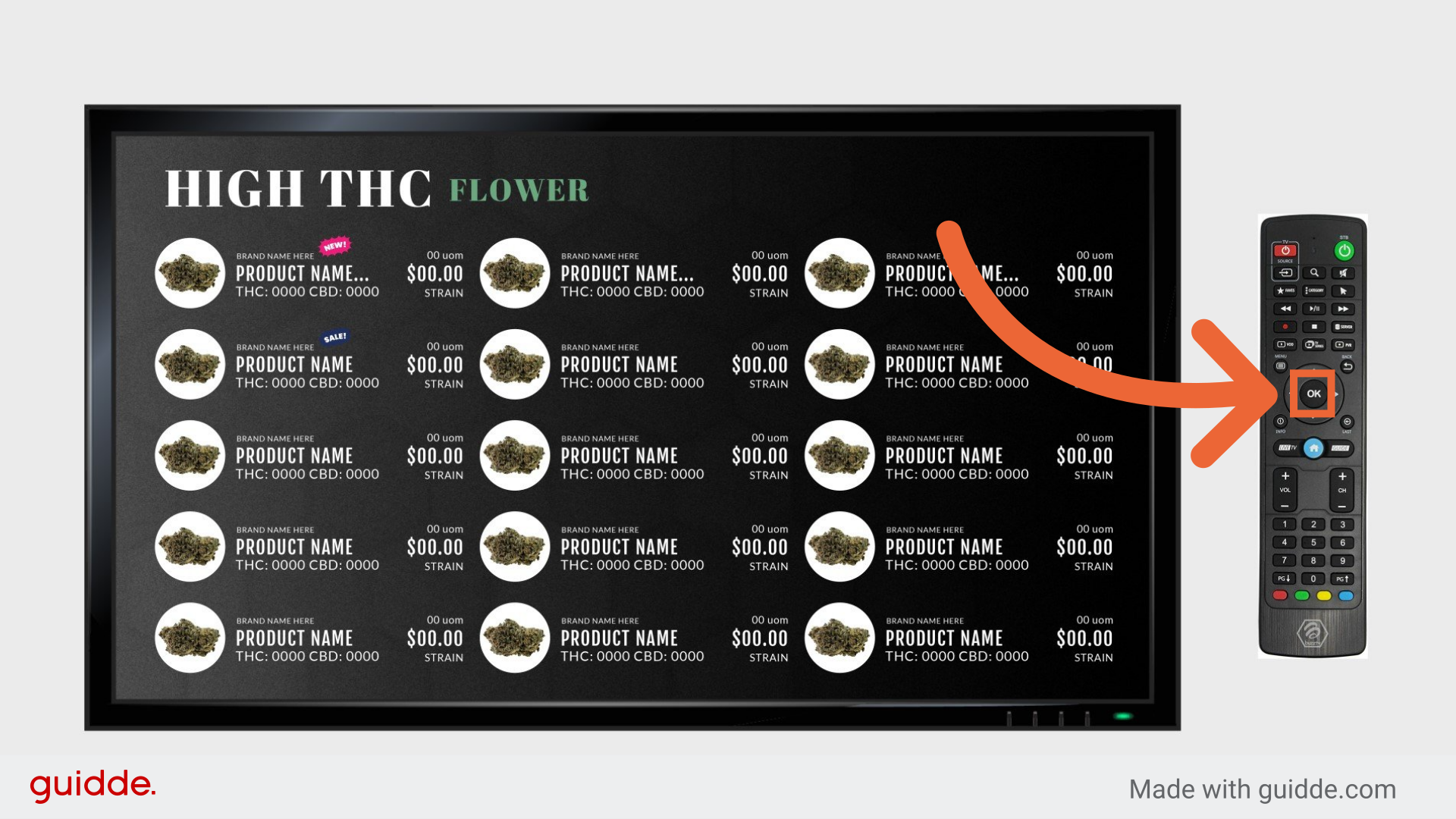
From the Menu Screen Press “OK” on the BuzzTV Remote to pull up the Admin Panel
2. Changing Screen Orientation
Using the arrow keys, navigate to the rotate option. Press the "OK" button until it is in the correct orientation.

3. Changing Screen Scale
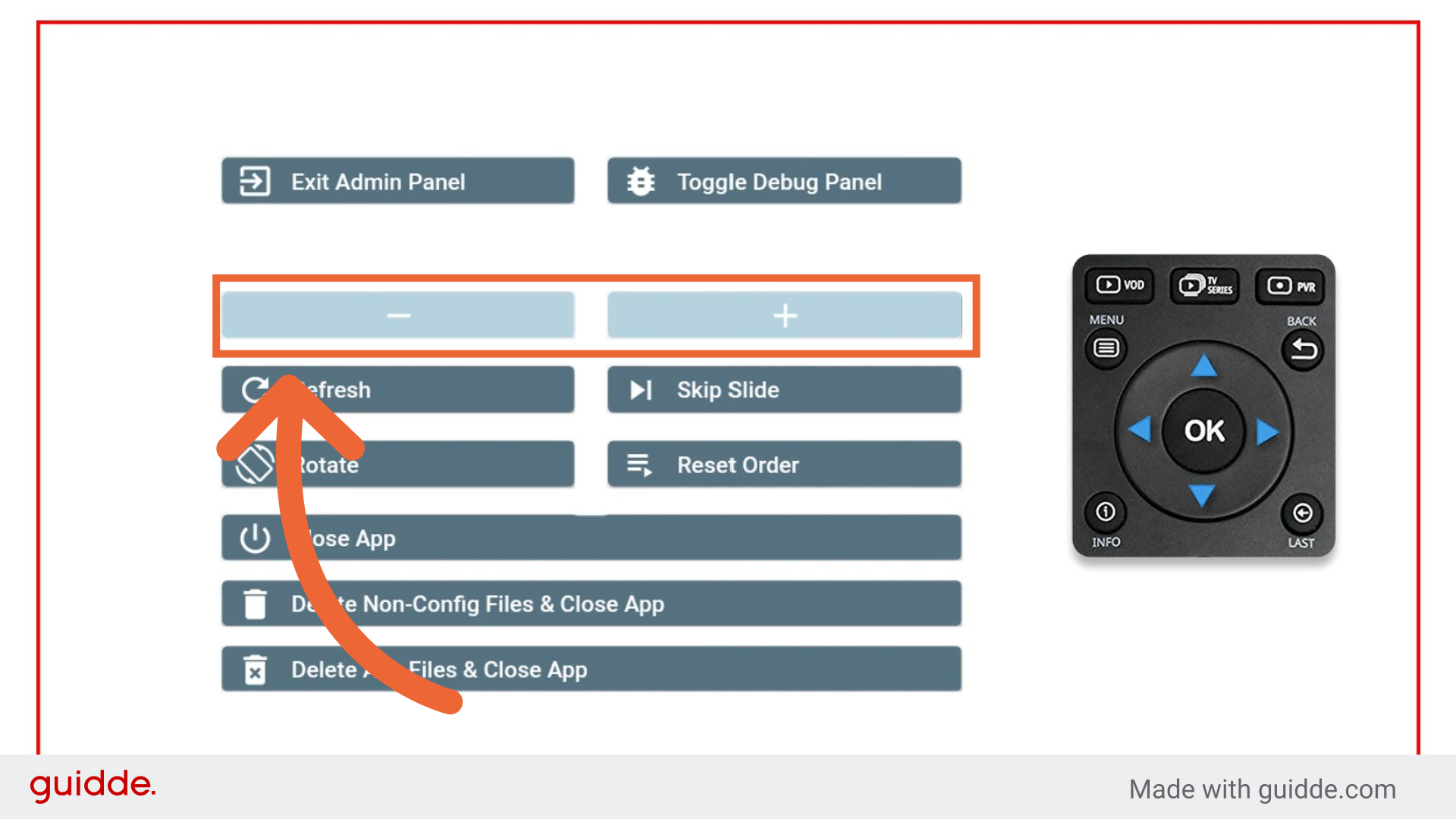
Using the arrow keys navigate to the minus and plus keys and continue to press "OK" on the minus to shrink the picture to fit or plus to increase the screen size. Continue to adjust until you see the red border right at the edge of your screen.
4. Exiting the Admin Panel
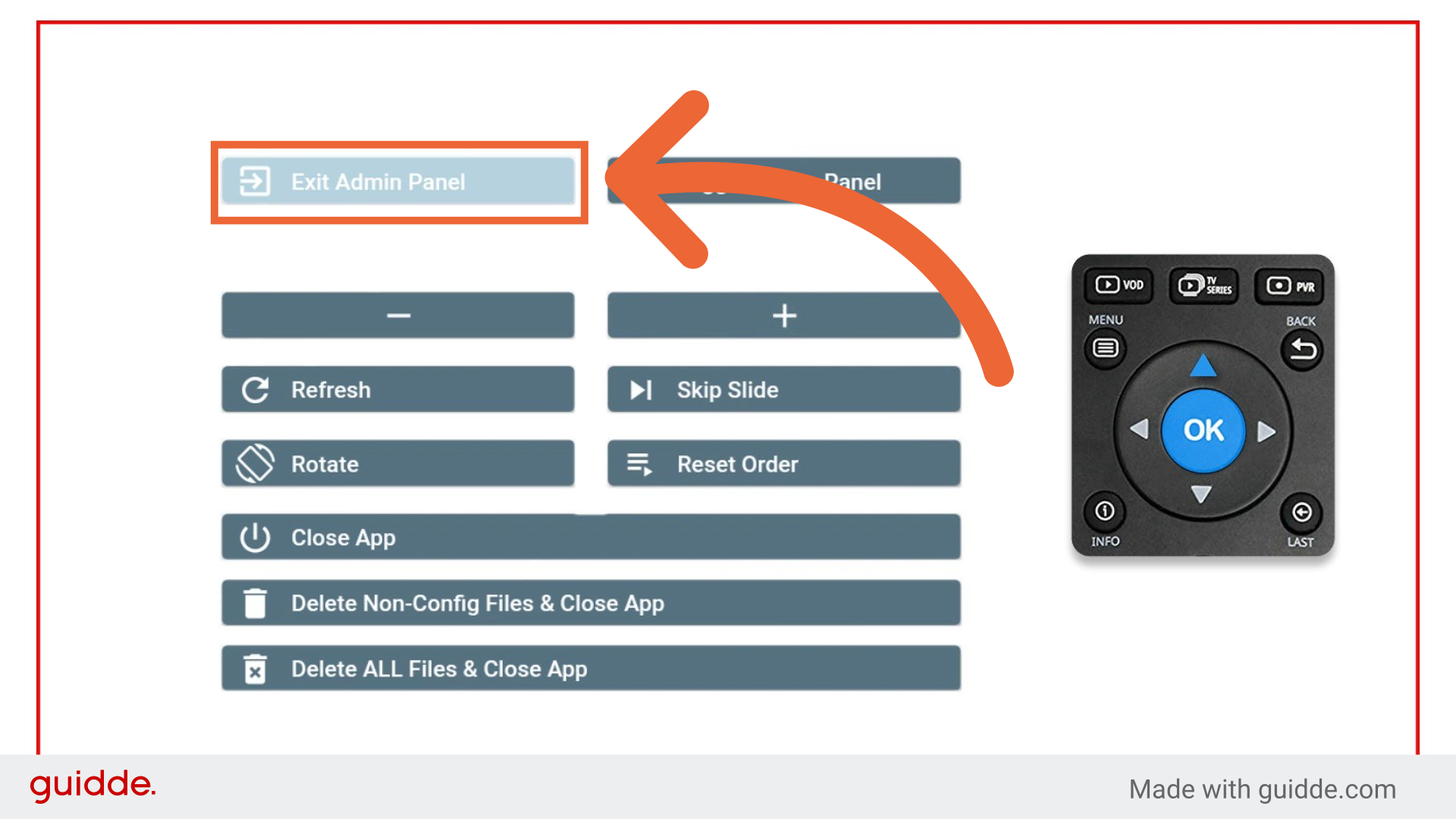
Once you are satisfied with the orientation and the scale, use the arrow keys to navigate to the "Exit Admin Panel" button and press "OK".
This guide covered how to adjust screen orientation and scale to ensure optimal display settings.
Was this article helpful?
That’s Great!
Thank you for your feedback
Sorry! We couldn't be helpful
Thank you for your feedback
Feedback sent
We appreciate your effort and will try to fix the article